Preferences🔗
VST Live’s Preferences provide default values for new Projects and other contexts.
Audio🔗
The audio preferences set here will be the defaults when you create a new project.
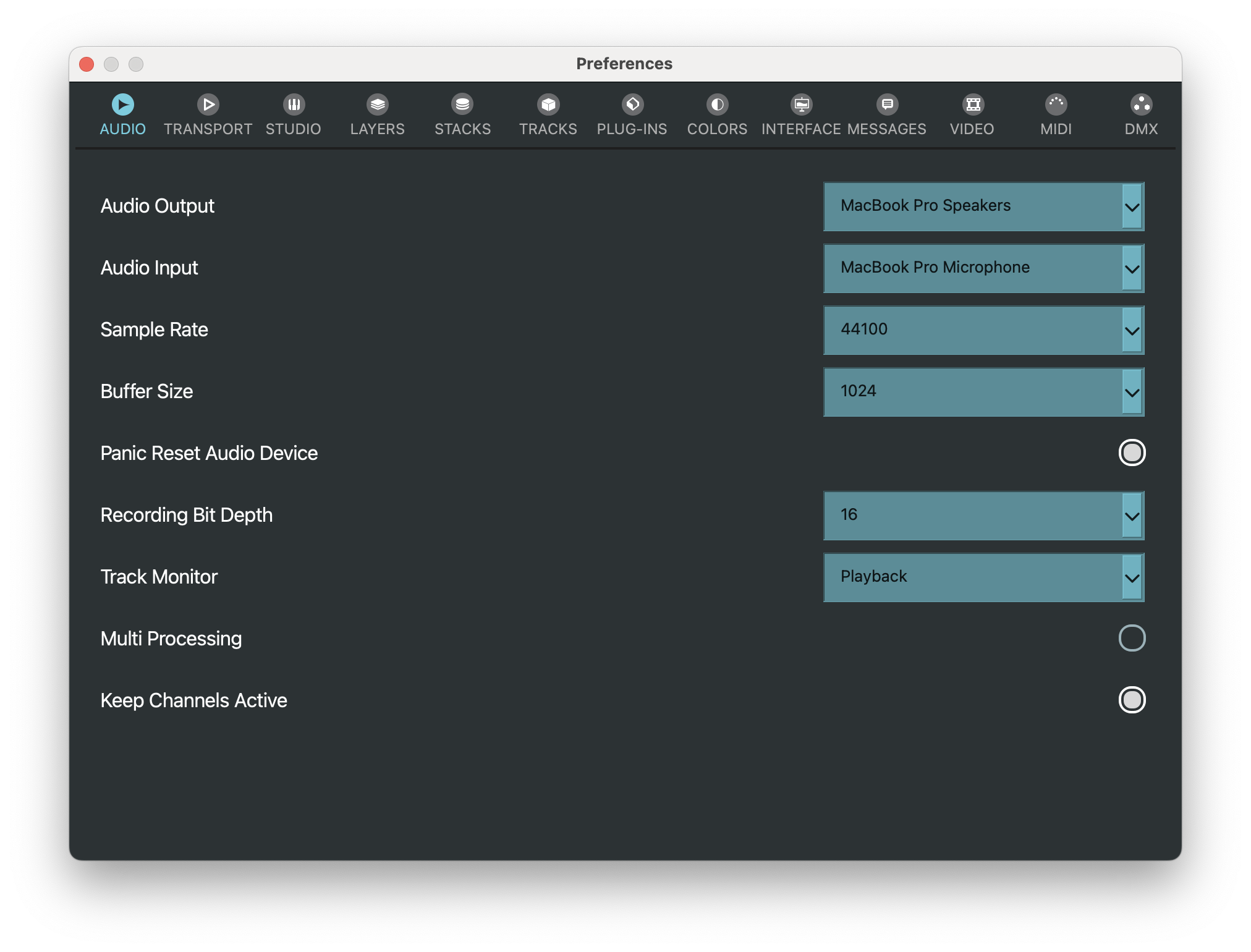
Audio Output🔗
The audio device/driver you use for sound output from VST Live.
Audio Input🔗
The audio device/driver you use for sound input to VST Live.
Sample Rate🔗
The active sample rate for your audio devices and (by extension) processing within your VST Live Project.
Buffer Size🔗
The size of the buffer that digital audio data is copied to (for input) and from (for output). Larger buffers provide more time for its audio to be processed, but this delay manifests itself as latency.
Master Output🔗
Your default output.
Panic Reset Audio Device🔗
Silences output to the Master Output device.
This function is available in the bottom-left of the Project Window (“Panic”). It also available as an Action.
Recording Bit Depth🔗
Sets the default bit depth used for newly recorded audio files.
Track Monitor🔗
Determines whether the track’s playback is audible while recording. The live input signal is always audible.
- No Playback: Mutes the track’s playback during recording.
- Playback: Keeps the track’s playback audible during recording.
Multi Processing🔗
Enables multi-core processing for the audio engine to improve performance on supported systems.
Keep Channels Active🔗
Keeps Global Channels running when you switch Songs, so they are not paused during the change. This preference is enabled by default.
Transport🔗
Transport controls playback and recording on the Timeline.
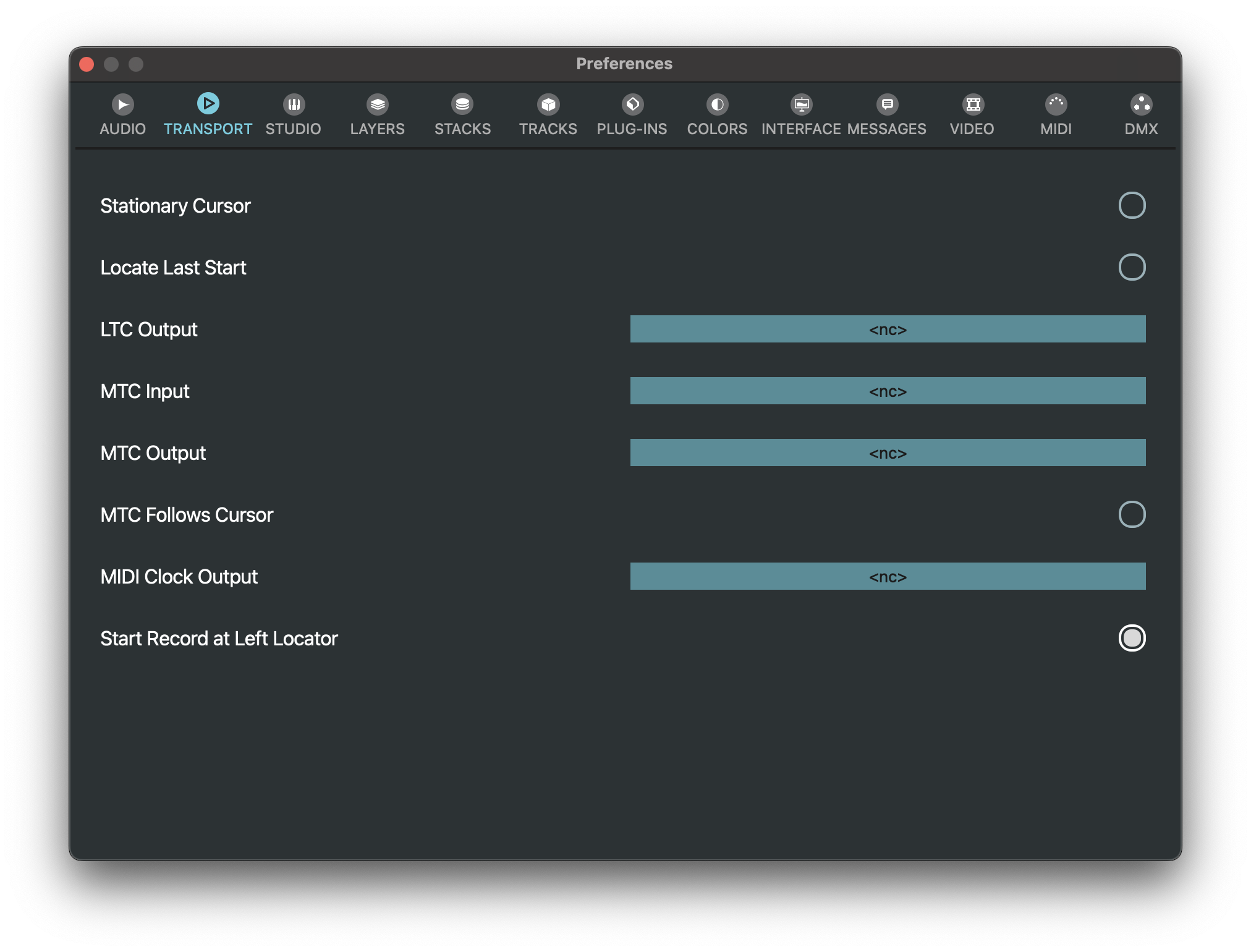
Stationary Cursor🔗
Sets the Transport option for stationary cursor.
Locate Last Cursor🔗
Sets the Transport option for locating the last cursor location.
LTC Output🔗
Selects the device used to send Linear Timecode (LTC).
MTC Input🔗
Selects the device used to receive MIDI Timecode (MTC).
MTC Output🔗
A device may be selected for MIDI time code output.
MTC Follows Cursor🔗
When enabled, the current time position is continuously sent as MTC while Cycle is running.
MIDI Clock Output🔗
Selects the MIDI device used to send MIDI Clock.
Start Record at Left Locator🔗
When enabled, recording starts at the Left Locator, regardless of the current Playhead position. This option is enabled by default.
Studio🔗
The Studio settings apply to VST Live’s primary workspace.
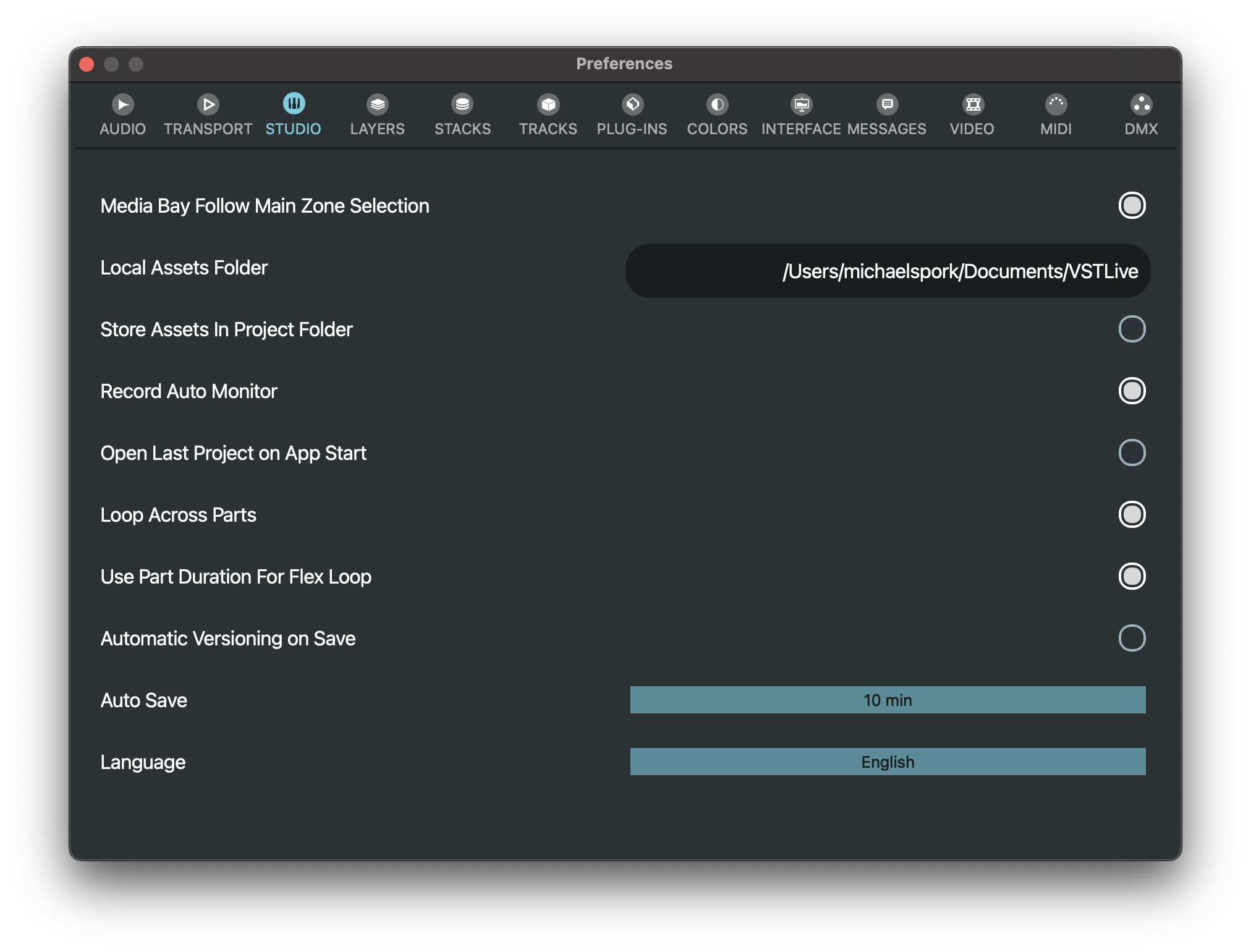
Media Bay Follow Main Zone Selection🔗
When enabled, the Media Bay follows the selected tab in the Main Zone.
Local Assets Folder🔗
Sets the directory for the Local Assets folder on storage device.
Store Assets in Project Folder🔗
If active, all assets you save will automatically be stored in each Project’s folder on your storage device.
Record Auto Monitor🔗
Disables Auto Monitor when recording.
Open Last Project On Start🔗
Automatically opens the last Project when VST Live starts.
Loop Across Parts🔗
When enabled, looping continues across multiple Parts.
Use Part Duration For Flex Loop🔗
Uses the Part duration as the Flex Loop length.
Automatic Versioning on Save🔗
Automatically creates a new project version each time you save.
Auto Save🔗
Automatically saves the Project at regular intervals (Off, 2, 5, 10, or 30 minutes). Default is Off.
Language🔗
Selects the application language (English, Deutsch, Français, Español, or Italiano).
Layers🔗
These preferences affect Layers.
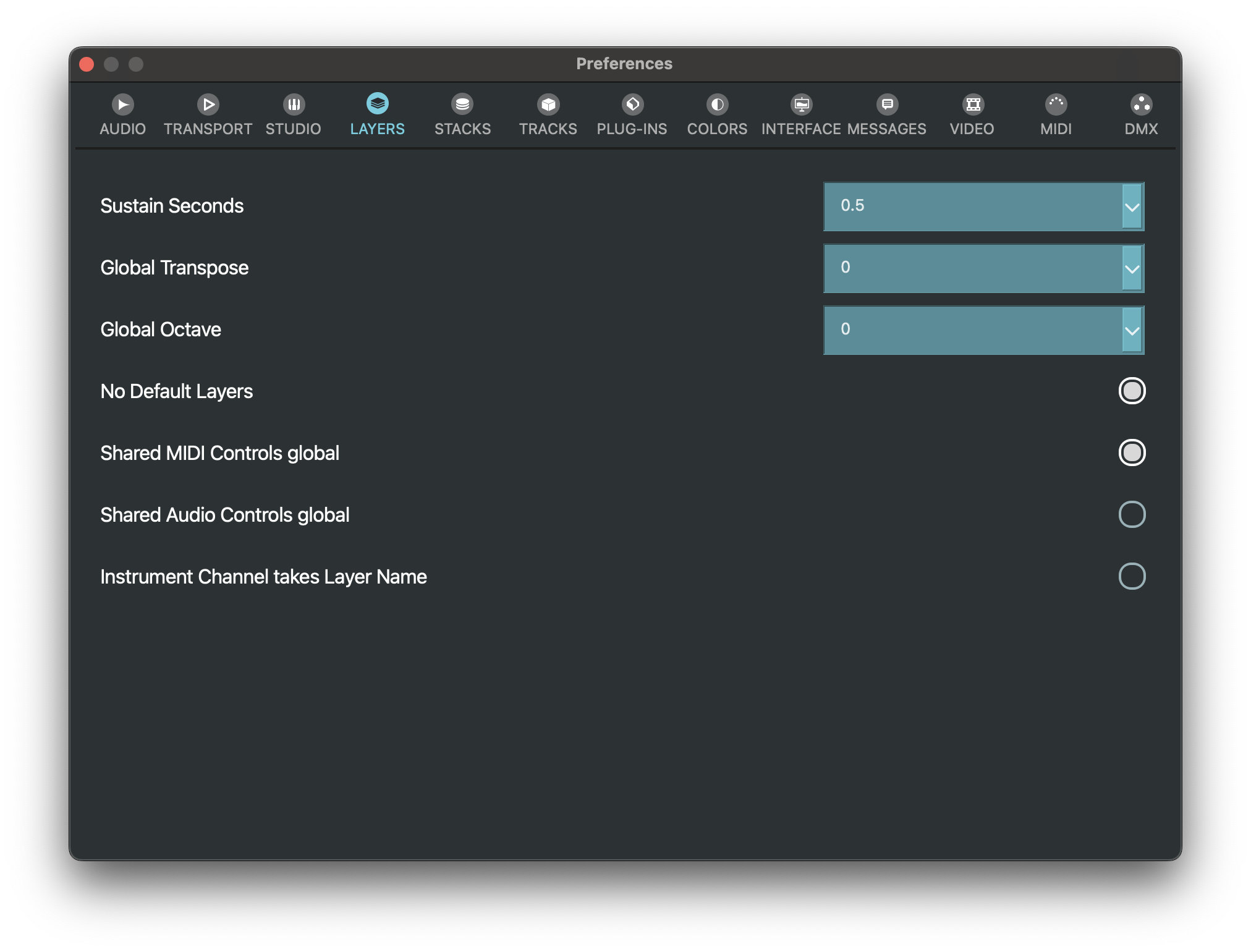
Sustain Seconds🔗
Sets the duration that Layers will continue sounding after changing Parts in a Song. This prevents sounds from getting cut off in the transition. (CPU usage may increase for this period.)
Global Transpose🔗
This field will transpose all virtual instruments in VST Live.
No Default Layers🔗
When new Layers are created, the default Layer will not be applied.
Shared MIDI Controls (Global)🔗
Makes Shared MIDI Controls available globally across the Project.
Shared Audio Controls (Global)🔗
Makes Shared Audio Controls available globally across the Project.
Instrument Channels take Layer Names🔗
When enabled, Mixer channels use the Layer name instead of the instrument name.
Stacks🔗
These preferences affect Stacks.
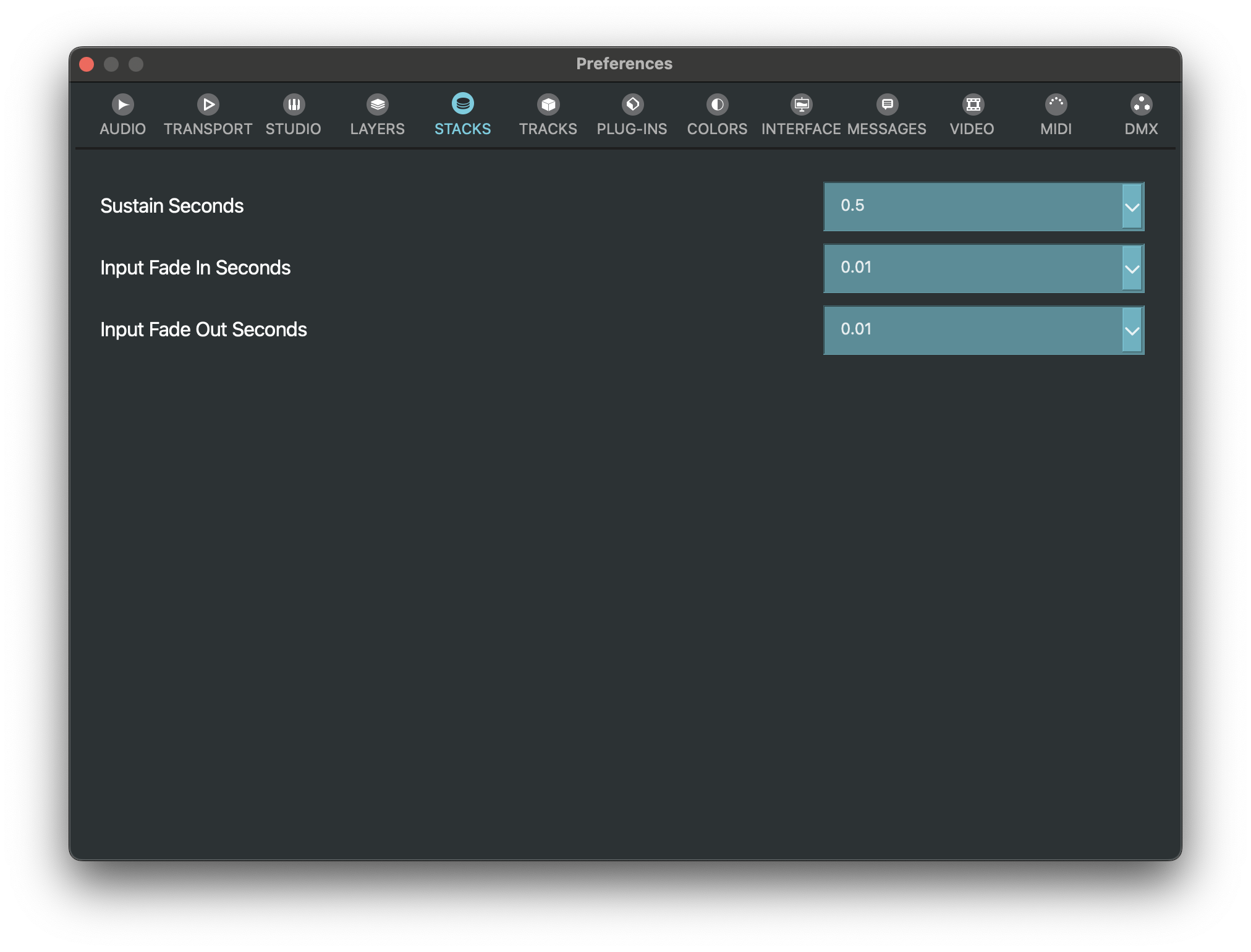
Sustain Seconds🔗
Sets the crossfade time when switching VST effects hosted in Stacks.
Input Fade In Seconds🔗
Sets the fade-in time for input (0.01, 0.025, 0.05, 0.1, 0.25, 0.5, or 1 s).
Input Fade Out Seconds🔗
Sets the fade-out time for input (0.01, 0.025, 0.05, 0.1, 0.25, 0.5, or 1 s).
Tracks🔗
These preferences affect Tracks.
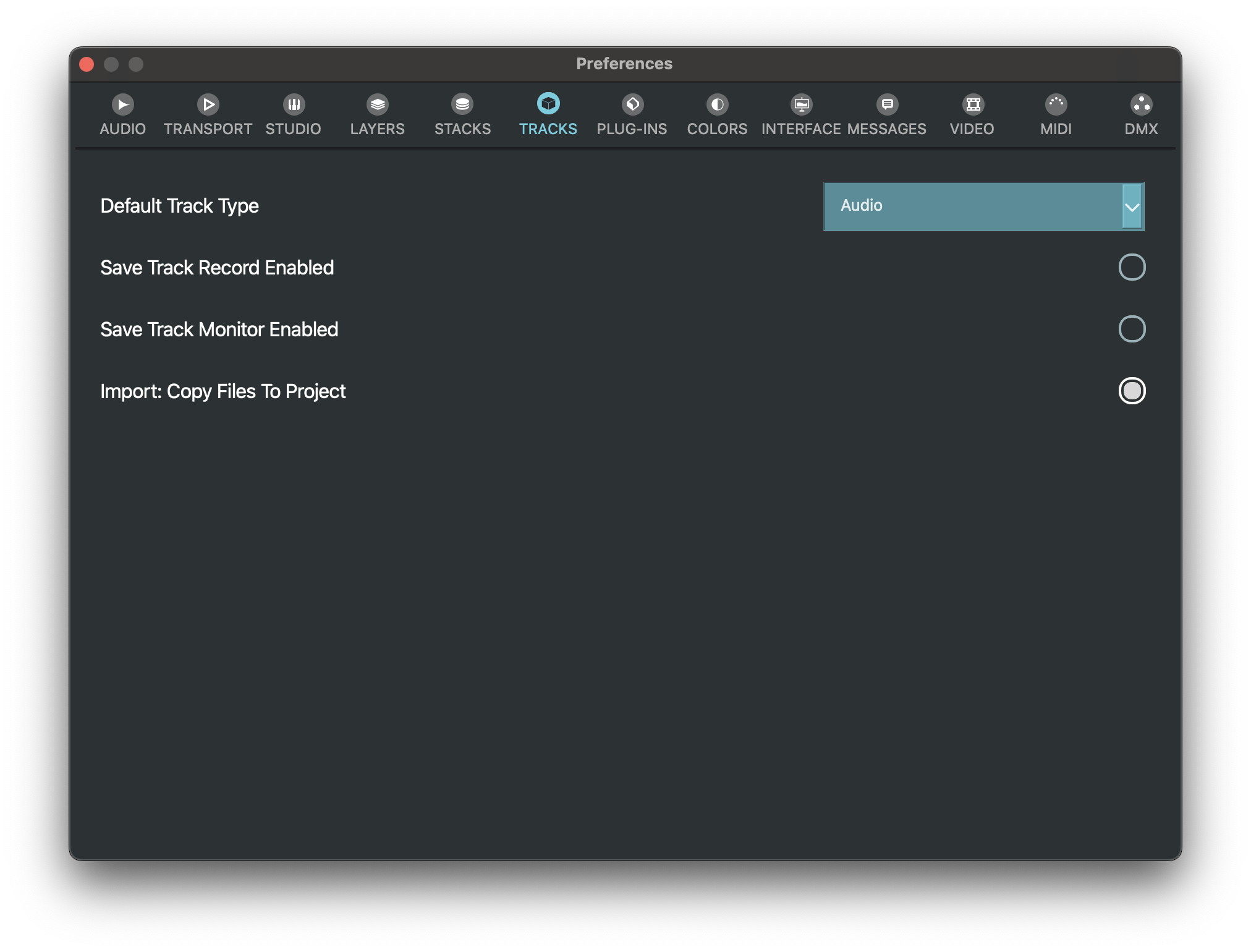
Default Track Type🔗
Sets the default Track type.
Save Track Record Enabled🔗
Saves the state of record-enabled tracks when a project is closed. When a project is opened, the recording states are restored.
Save Track Monitor Enabled🔗
Saves the state of monitor-enabled (i.e., mute and solo) tracks when a project is closed. When a project is opened, the recording states are restored.
Import: Copy Files To Project🔗
When enabled, imported files are copied into the Project folder.
Plug-Ins🔗
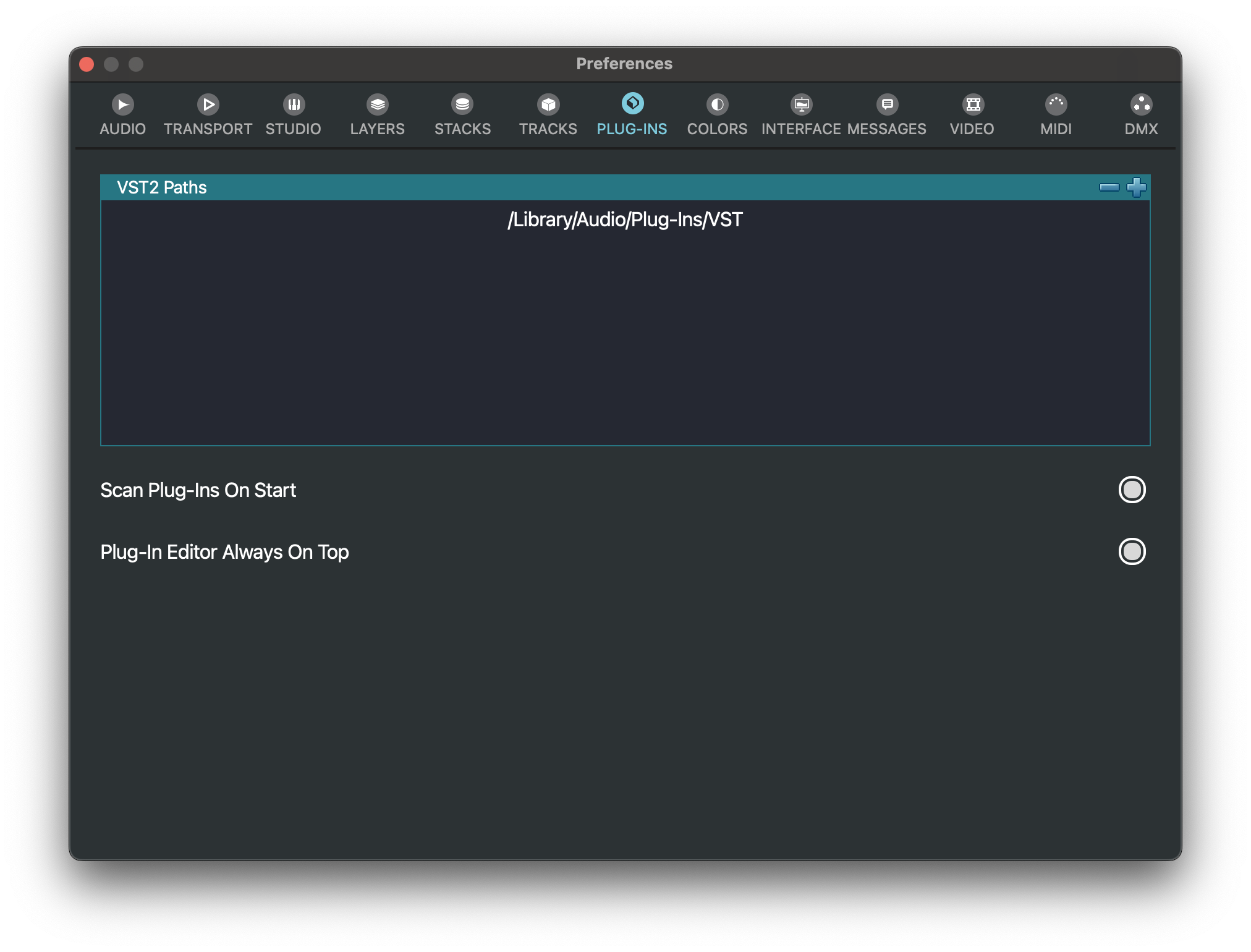
VST2 Paths🔗
All of the locations on your mass storage device that VST LIVE scans for VST2 plugins.
- To add a new folder, click the plus icon.
- To remove a folder, first select the folder, then click the minus icon.
Scan Plug-Ins on Start🔗
If active, the next time you start VST Live, the system will perform a scan and validation of all audio plugins.
Plugin-In Editor Always on Top🔗
This option keeps a plugin’s native editor window floating above all other windows in VST Live.
Colors🔗
Color preferences may be set here.
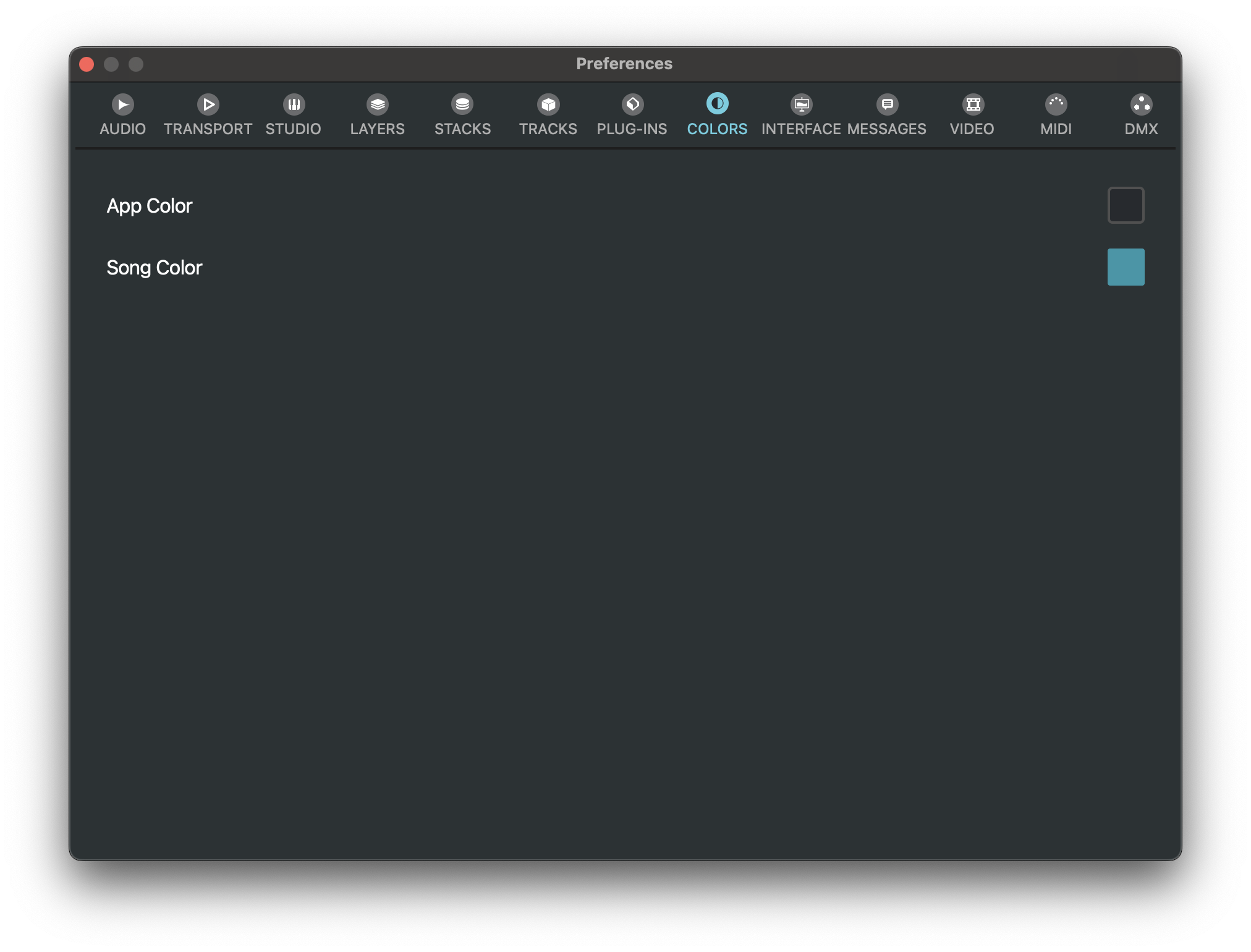
Song Color🔗
Sets the color for song elements throughout the VST Live user interface.
App Color🔗
Sets the main application color used throughout the VST Live user interface.
Interface🔗
Options related to VST Live’s graphical user interface can be viewed and set here.
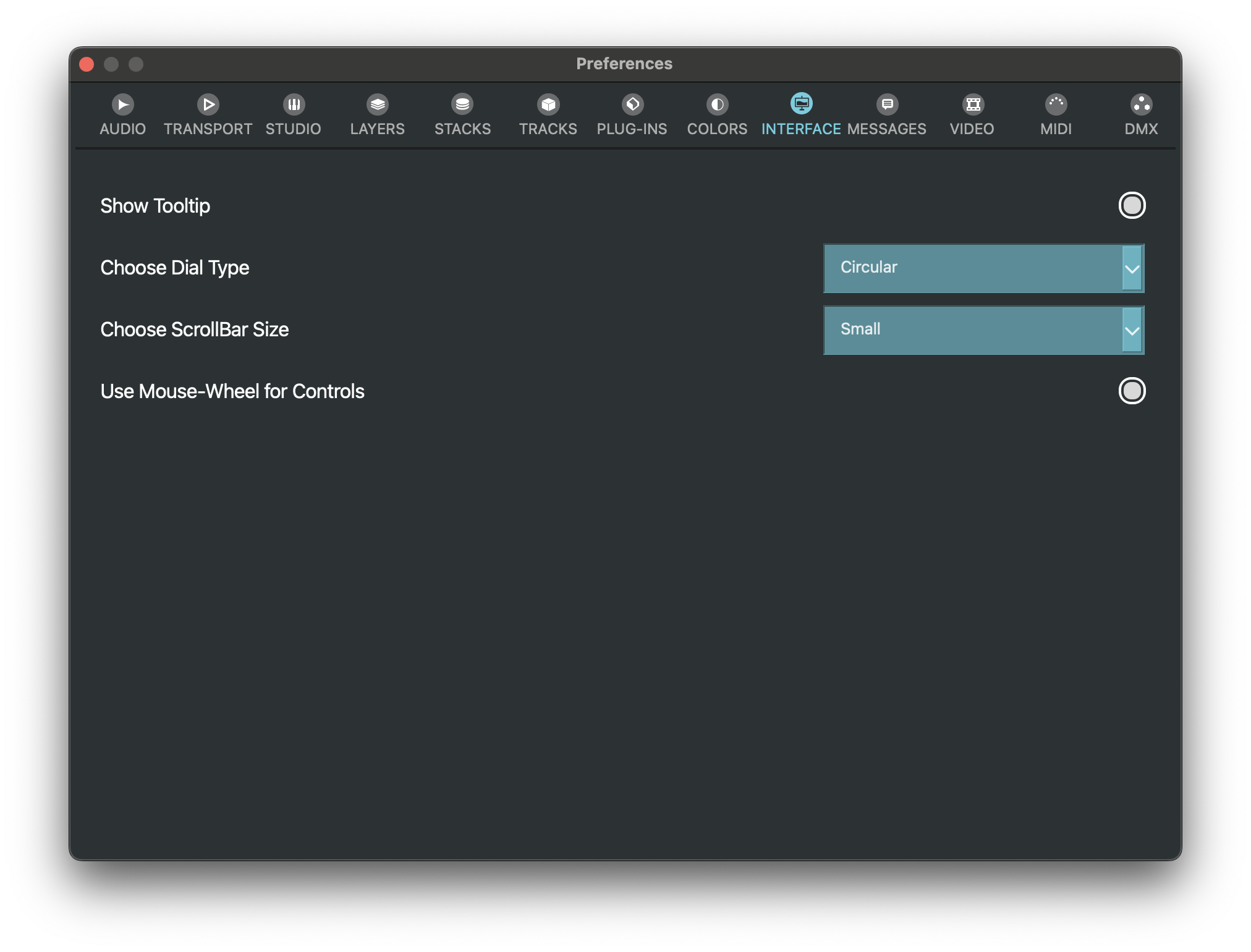
Show Tooltip🔗
Pausing the pointer over widgets (e.g., button, dial, data field) in the user interface will reveal a short description of the widget’s function.
Dial Type🔗
Select the type of dial widget for VST Live’s user interface (including plugins).
Choose Scroll Bar Size🔗
The size of windows’ scrollbars may be increased here, to better facilitate user interaction when VST Live is run on a multi-touch computer.
Use Mouse-Wheel for Controls🔗
When enabled (default), the mouse wheel controls the widget under the pointer.
Message🔗
The display of previously-displayed messages by VST Live can be toggled.
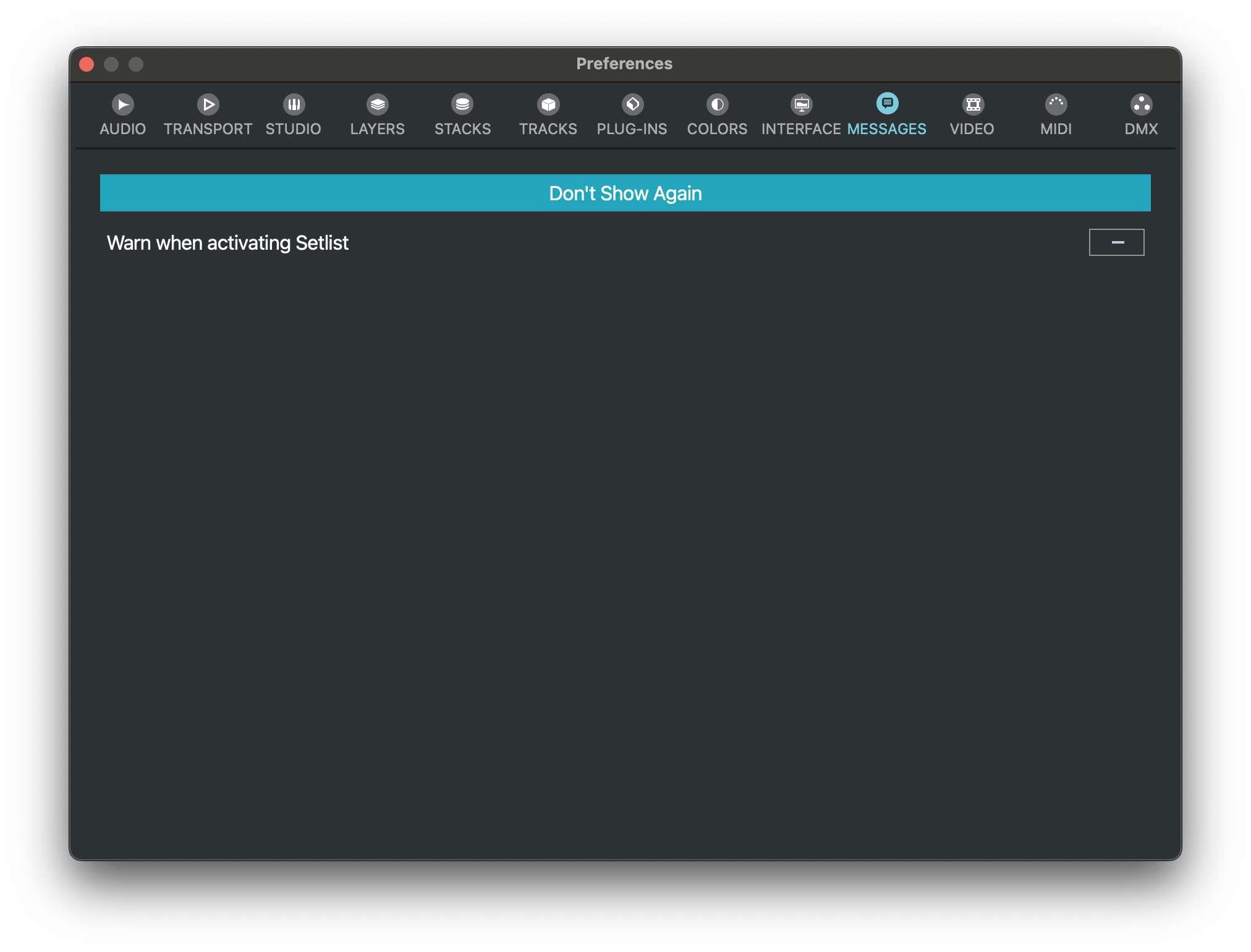
Don’t Show Again🔗
Mute repeated warning messages.
Video🔗
These preferences affect Video Engine.
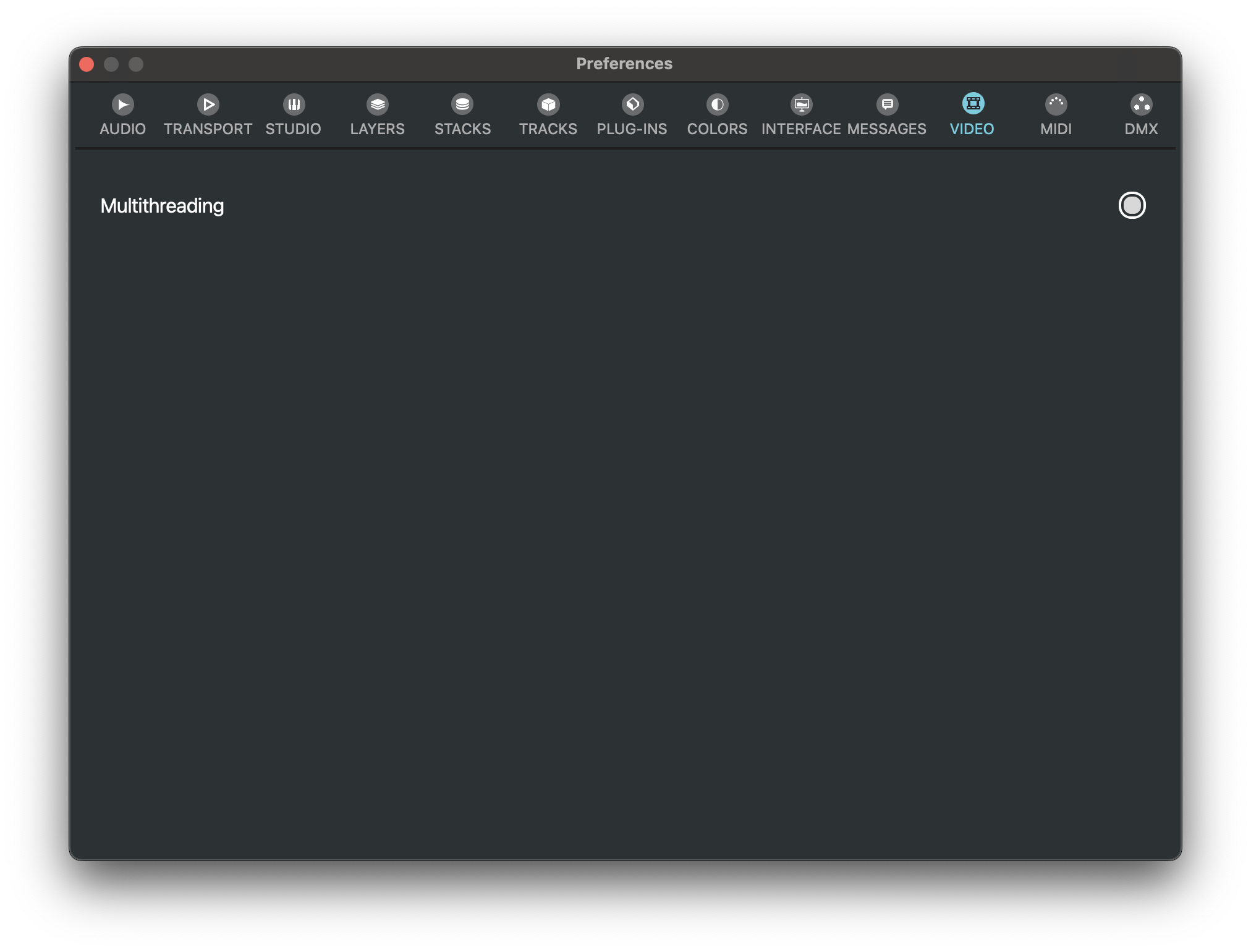
Multithreading🔗
Enables multi-threaded video processing to improve playback performance.
MIDI🔗
These preferences affect MIDI playback, chasing, and controller handling.
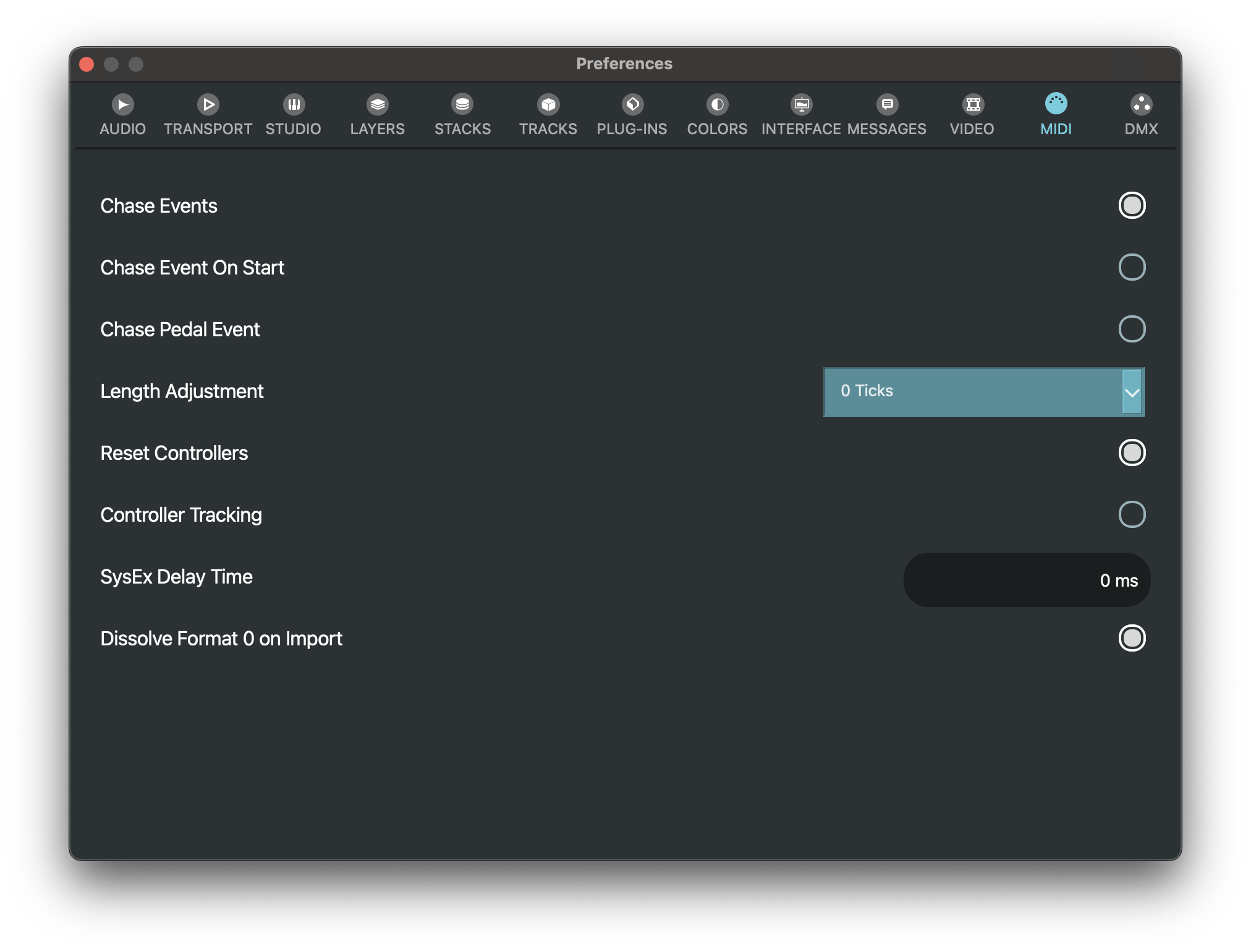
Chase Events🔗
When enabled, VST Live chases MIDI events so the correct state is restored when starting playback from the middle.
Chase Events on Start🔗
Performs an event chase when playback starts.
Chase Pedal Events🔗
Includes sustain and other pedal controller events when chasing.
Length Adjustment🔗
Adjusts MIDI note lengths by the selected number of ticks (-10 … 0 … +10).
Reset Controllers🔗
Sends controller reset messages to return MIDI controllers to a defined state.
Controller Tracking🔗
Tracks controller values during playback so they can be restored when needed.
SysEx Delay Time🔗
Sets an additional delay (in ms) between sending SysEx messages.
Dissolve Format 0 on Import🔗
When enabled, imported MIDI Format 0 files are split into separate tracks by channel.
DMX🔗
These preferences affect DMX Engine.
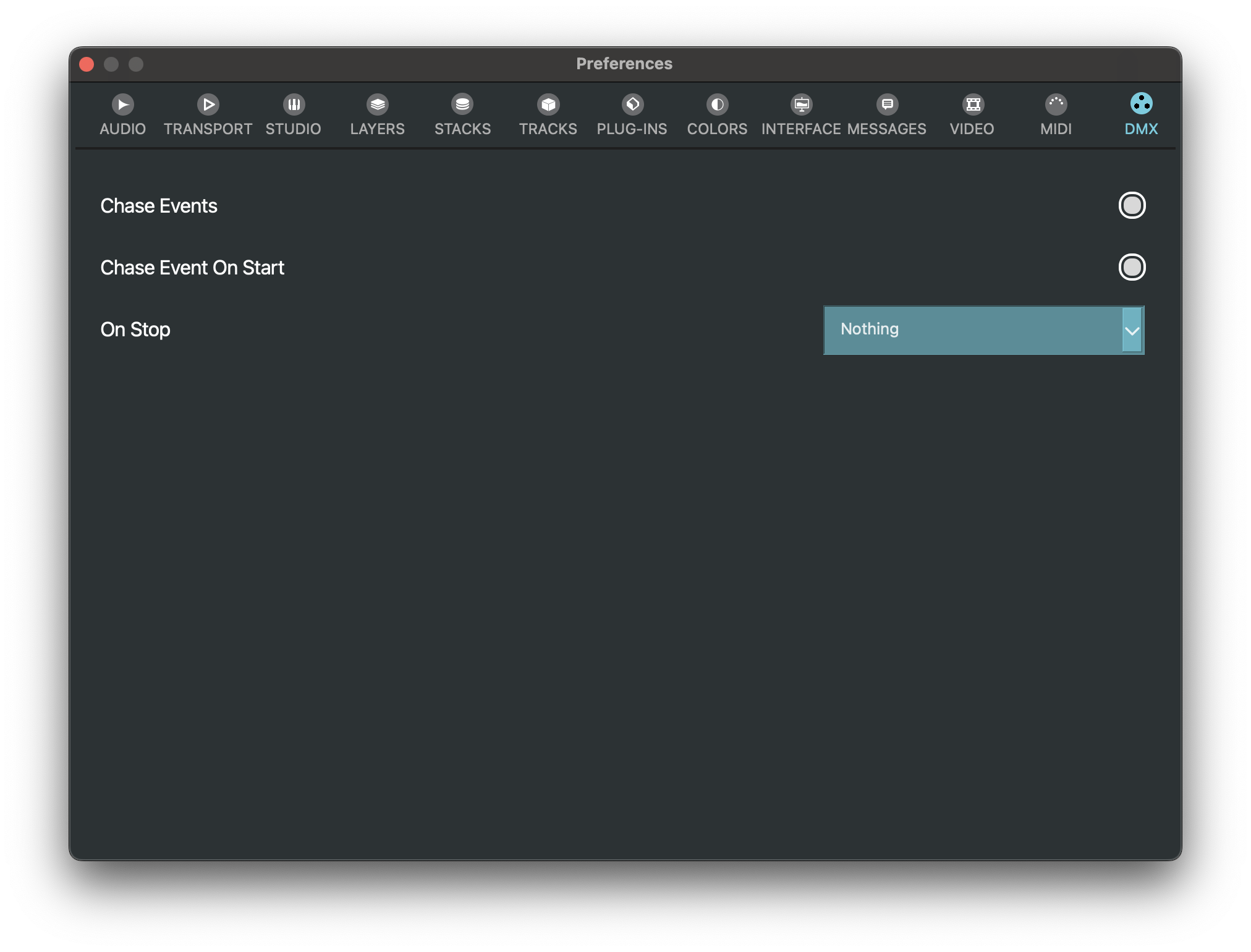
Chase Events🔗
When enabled, VST Live chases DMX values so the current lighting state is restored when starting from the middle.
Chase Events On Start🔗
Performs a DMX chase when playback starts.
On Stop🔗
Selects what happens to DMX output when you stop playback (Nothing or BlackOut).