FlexLoop🔗
Looping enables you to repeat a Part—or a section of a Part—multiple times. Flex Loop is a powerful looping system that provides an intuitive interface to unlocking substantial flexibility in your performance.
Activation🔗
Clicking the FlexLoop icon in the Left Zone’s header activates FlexLoop. This indicated by the icon appearin in cyan.

Interface🔗
FlexLoop’s interface can be accessed in two places: The Left Zone (in the header) and the Track Arrange Panel.
Left Zone Header🔗
When you click on the FlexLoop icon, a new subhead appears under it. When you select a Part in the Left Zone, its corresponding FlexLoop parameters are displayed in this subhead.
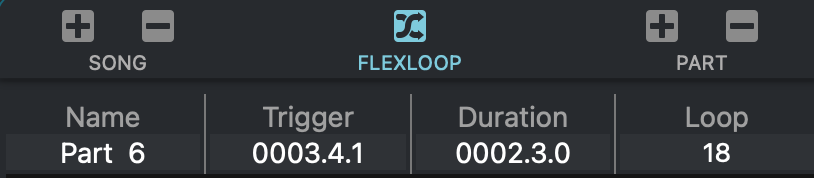
- Name
This field indicates the name of the selected Part.
As a shortcut, you can edit the selected Part’s name by clicking in this field.
Click in this field to change the Part’s name.
- Trigger Point
The Part’s Trigger Point—the time at which the selected Part begins—is indicated here. All FlexLoops begin when the Part starts—so changing the FlexLoop’s Trigger Point here also changes the starting point for its associated Part. Click in this field to change it.
- Duration
The FlexLoop’s duration is displayed in this field—this is how much of the associated Part is repeated. The duration can be shorter, but not longer, than the Part.
If a FlexLoop ends between beats, VST Live will extend the FlexLoop’s duration to the next beat of the measure. This ensures the timing of your performance remains consistent.
- Loop
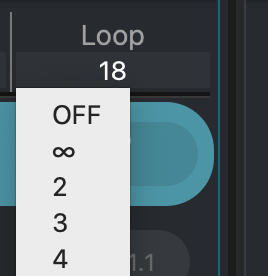
A FlexLoop can be set to repeat a specific number of times, or infinitely (or not at all). Clicking in this field displays a menu where you can make these selections.
Left Zone Body🔗
In the Left Zone’s listing of Songs and Parts, FlexLoop information is displayed for all Parts that have FlexLoops assigned to them.
Part Status🔗
Parts with FlexLoops have a blue play-circle icon; other parts have a grey one.
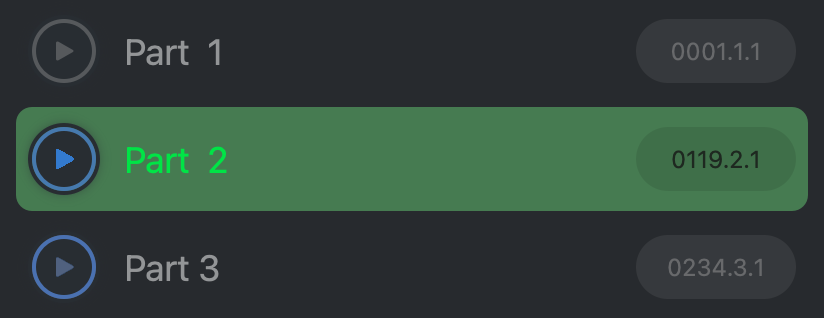
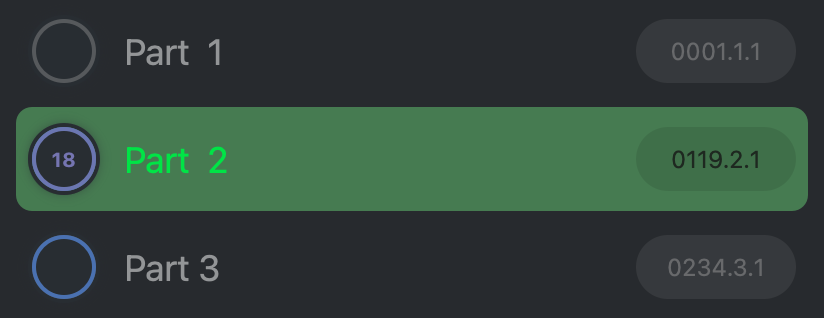
An active (playing) Part with a FlexLoop is distinguished with a purple play-circle icon. In place of a triangle glyph, the number of remaining loops is displayed
Loop Status🔗
The status a FlexLoop’s playback is displayed in the Part’s progress bar.

A Part without a FlexLoop, with the Transport stopped, is presented in light green.

As the Part plays, a dark green bar moves from left to right.

A Part with a FlexLoop has a red background.

As the dark green progress bar moves from left to right, the red bar grows shorter, and the light green bar moves right to left.

Where the two green bars meet—is the where the FlexLoop ends (and repeats).

Transport🔗
While a Part with a FlexLoop plays, the Cycle Button is shown purple and displays the number of remaining loops.

While the Transport is stopped, the Cycle Button shows the number of remaining loops, in light grey.

Track Workspace
The Track workspace displays the FlexLoop area of any selected Song Part.
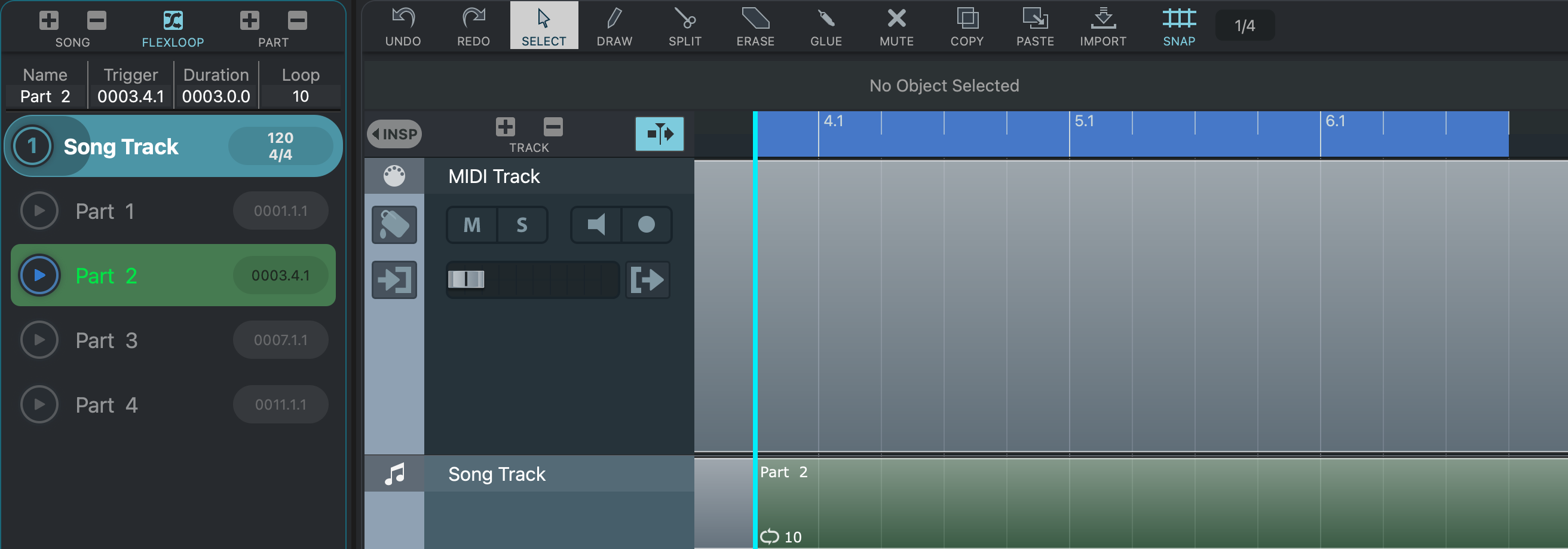
While the transport is stopped, the looping is shown in blue.
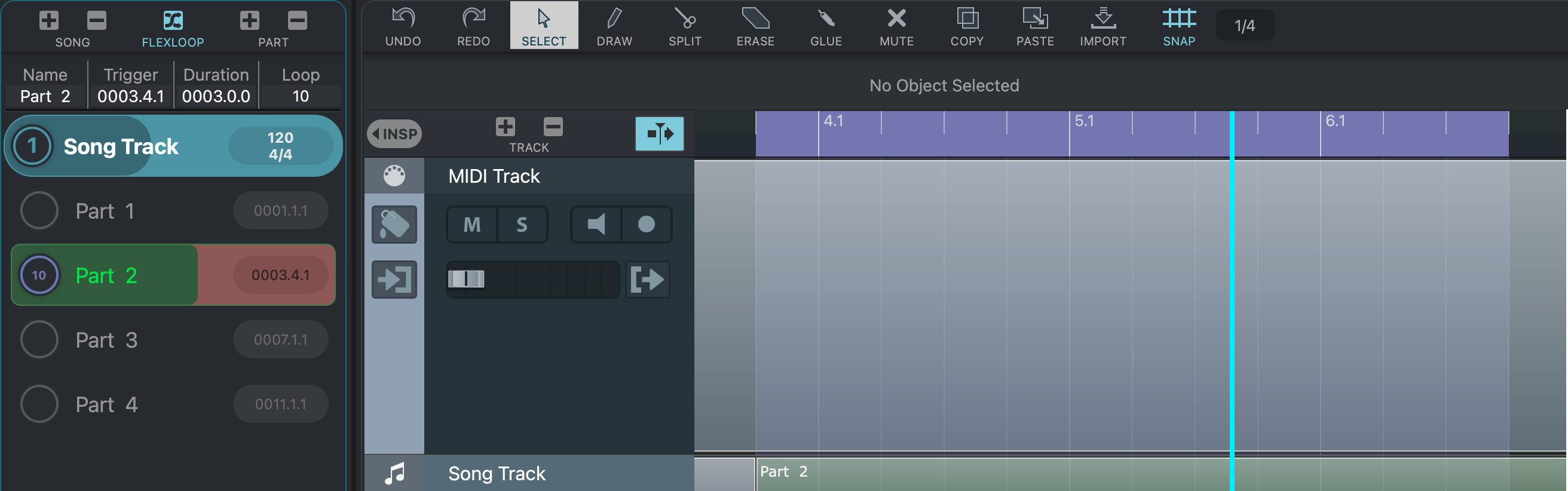
While the transport plays, it is shown in purple.