Beat🔗
The Beat Module is a programable step-sequencer for digital percussion.
Each Song has one available Beat sequence, which is always one bar long. The number of beats in each sequence is decided by the Song’s Time Signature.
Audio Mixer🔗
Interface🔗
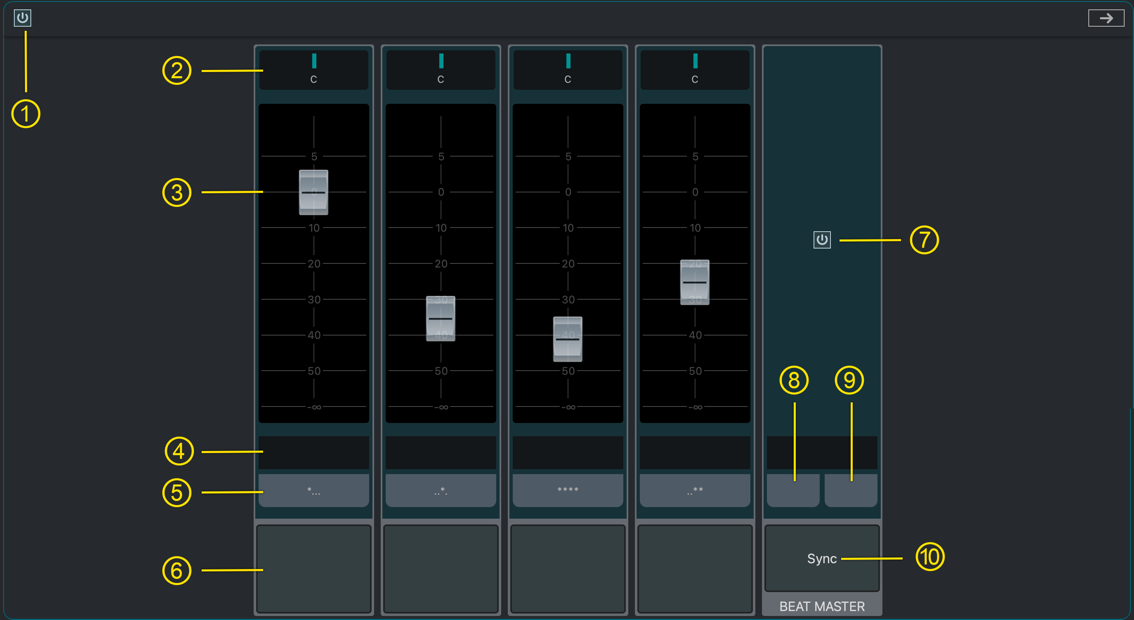
- Active Status
If illuminated, the Beat Module is active. To toggle the Beat Module between active and inactive, click this icon.
This is the same indicator switch as #7.
- Pan Control
Controls the stereo pan of the instrument assigned to this channel.
- Fader
Controls the level of the instrument assigned to this channel.
- Sound Selector
Click here to select a sound for this channel.
- Pattern
Click here to select a pattern for the instrument on this channel to play.
- Percussion Pad
Click this pad to audition the sound assigned to pad. The pad will illuminate during playback when the instrument triggers.
The Beat Module must be active.
- Active Status
If illuminated, the Beat Module is active. To toggle the Beat Module between active and inactive, click this icon.
This is the same indicator switch as #1.
- Save Pattern
Saves the current pattern sequence to local storage.
- Load Pattern
Loads a pattern sequence from local storage.
- Sync
If illuminated, the Beat Module will play the pattern sequence.
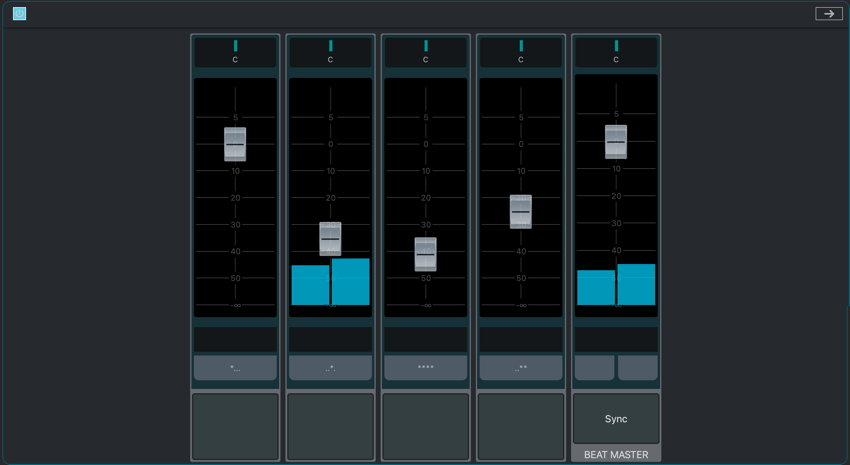
To toggle the Beat Module between active and inactive, click this icon.
For the Beat Module to play, VST Live’s Transport must be engaged.
Step-Programming🔗
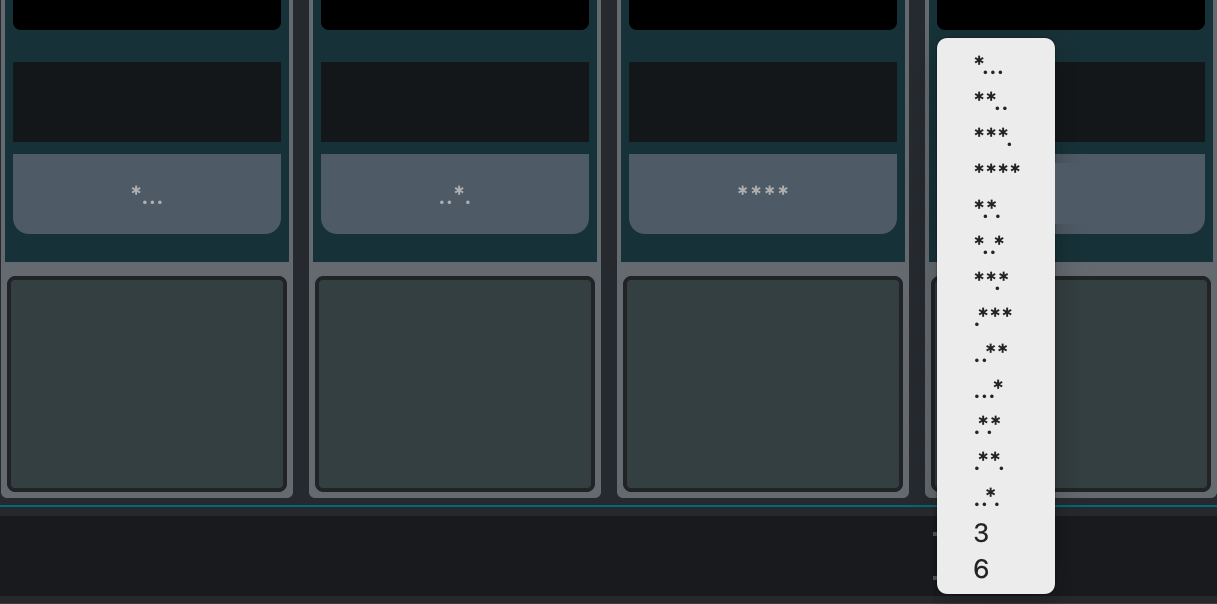
Clicking the Pattern pop-menu reveals a menu of percussion patterns. Given the Song’s Time Signature, every possible rhythmic pattern will be represented in the menu.
Creating a Pattern🔗
To create the pattern for a Beat channel, choose the pattern you wish from the menu.
Pattern Encoding🔗
- The pattern encoding is:
- The number of characters on a line = the number of beats in the bar.
- The ‘.’ character indicates a rest.
- The ‘*’ indicates a trigger.
- The ‘3’ and ‘6’ indicate triplets.
Mixer Channel🔗

When the Beat Module is active, it appears as a yellow channel in the Mixer called “Beat”.
If the Beat Module is not active, the Beat channel will not appear in the Mixer.